Online Support

Windows Media player compatible DVD decoder
Dscaler is a open source software under a GNU GPL license, availabe free of charge for any kind of use, and free of spy ware. You can download it from SourceForge, just click here.
It will install the mpeg2 codec on your computer, which will enable Windows media player to play movies from DVD.
It will also install its own media player, but you can make this transparent to the user by selecting, during the installation process, “Don’t create a program menu folder”, and “don’t create a desktop shortcut”.
Codecs packs
The “Windows XP codec pack” is a good deal, it will install most widely used codecs on your computer, and this should keep out of trouble for most of the time. It comes without spy ware or adware, I tested this.
Download it from here, and pay a visit to www.xpcodecpack.com
If this is not enough, you can try K-lite codecs pack from www.codecguide.com
The DivX codec is included in those packs, but you can download it separately from divx.com.
Click Here To Download Combofix
To download ComboFix, click the link above, and at the page that opens, please click on the download link for ComboFix. When you click on the link you will see a download prompt similar to the one below.
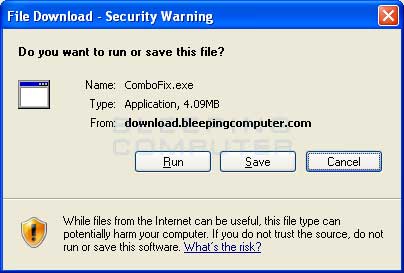
Download ComboFix Prompt
Click on the Save button, and when it asks you where to save it, make sure you save it directly to your Windows Desktop. An image showing this is below.
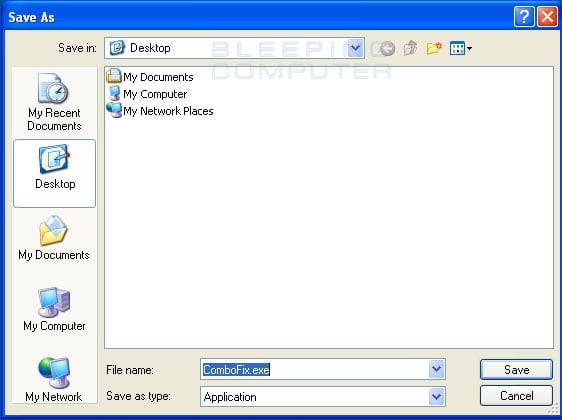
Downloading ComboFix to the Desktop
When you have the Save as screen configured to save ComboFix.exe to the Desktop, click on the Save button. ComboFix will now start downloading to your computer. If you are on a dialup, this may take a few minutes. When ComboFix has finished downloading you will now see an icon on your desktop similar to the one below.

ComboFix Icon
We are almost ready to start ComboFix, but before we do so, we need to take some preventative measures so that there are no conflicts with other programs when running ComboFix. At this point you should do the following:
- Close all open Windows including this one.
- Close or disable all running Antivirus, Antispyware, and Firewall programs as they may interfere with the proper running of ComboFix. Instructions on disabling these type of programs can be found in this topic.
Once these two steps have been completed, double-click on the ComboFix icon found on your desktop. Please note, that once you start ComboFix you should not click anywhere on the ComboFix window as it can cause the program to stall. In fact, when ComboFix is running, do not touch your computer at all. The scan could take a while, so please be patient.
Once you double-click on the icon, you may see a screen similar to the one below.
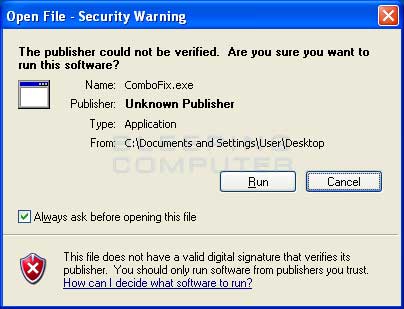
Windows Open File Security Warning
Windows is issuing this prompt because ComboFix does not have a digital signature. This is perfectly normal and safe and you can click on the Run button to continue. If you are using Windows Vista or Windows 7, and receive UAC prompt asking if you would like to continue running the program, you should press the Continue button.
You will now see the ComboFix disclaimer screen as shown below.

ComboFix Disclaimer
Please read through the disclaimer and if you do not agree to it, then please click on the Cancel button to exit the program. Otherwise, to continue you should click on the I agree button. If you clicked on I Agree, ComboFix will now install itself on to your computer. When it is done, a blue screen will appear as shown below.
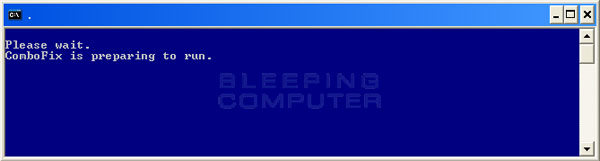
ComboFix is Preparing to Run
ComboFix is now preparing to run. When it has finished ComboFix will automatically attempt to create a System Restore point so that if any problems occur while using the program you can restore back to your previous configuration. When ComboFix has finished creating the restore point, it will then backup your Windows Registry as shown in the image below.
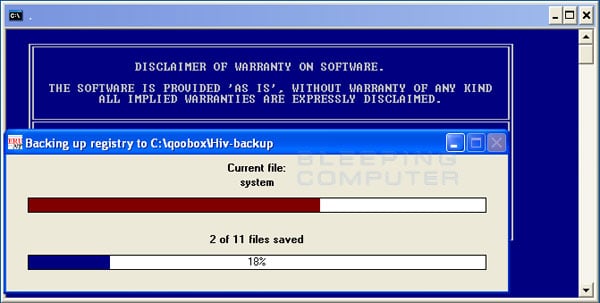
ComboFix is backing up the Windows Registry
Once the Windows Registry has finished being backed up, ComboFix will attempt to detect if you have the Windows Recovery Console installed. If you already have it installed, you can skip to this section and continue reading. Otherwise you will see the following message as shown below:
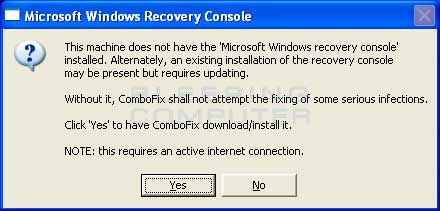
ComboFix Recovery Console
At the above message box, please click on the Yes button in order for ComboFix to continue. Please follow the steps and instructions given by ComboFix in order to finish the installation of the Recovery Console. Once it has finished installing, you will be presented with the screen shown below.
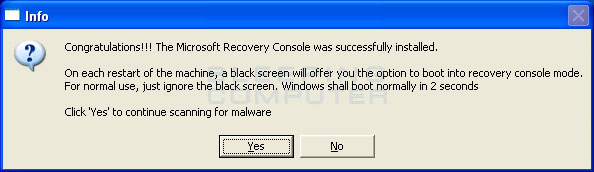
ComboFix Recovery Console Finished
You should now press the Yes button to continue. If at any time during the Recovery Console installation you receive a message stating that it failed to install, please allow ComboFix to continue with the scan of your computer. When it is done, and a log has been created, you can then perform the manual install of the Recovery Console using the steps found in the Manually installing the Windows Recovery Console section.
ComboFix will now disconnect your computer from the Internet, so do not be surprised or concerned if you receive any warnings stating that you are no longer on the Internet. When ComboFix has finished it will automatically restore your Internet connection.
ComboFix will now start scanning your computer for known infections. This procedure can take some time, so please be patient.
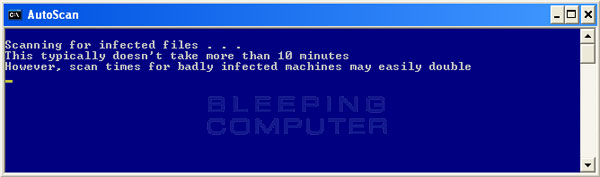
ComboFix is scanning the computer for infections
While the program is scanning your computer, it will change your clock format, so do not be concerned when you see this happen. When ComboFix is finished it will restore your clock settings to their previous settings. You will also see the text in the ComboFix window being updated as it goes through the various stages of its scan. An example of this can be seen below.
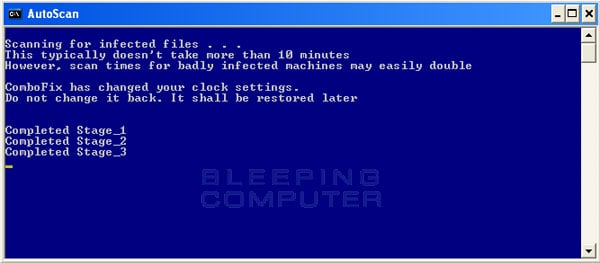
Stages of the ComboFix AutoScan
At the time of this writing there are a total of 50 stages as shown in the image below, so please be patient. The amount of stages will go up as time goes on, so if the amount of stages is different when you run it, please do not be concerned.
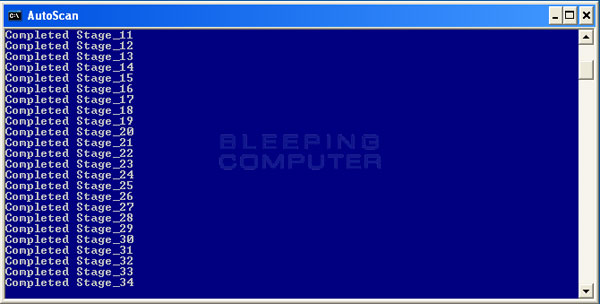
34th Stage of the ComboFix AutoScan
When ComboFix has finished running, you will see a screen stating that it is preparing the log report as shown below.
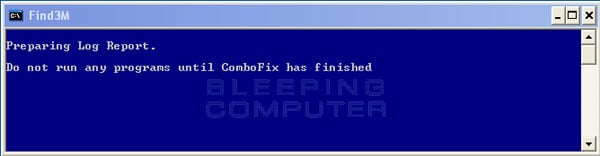
ComboFix is preparing the log report
This can take a while, so please be patient. If you see your Windows desktop disappear, do not worry. This is normal and ComboFix will restore your desktop before it is finished. Eventually you will see a new screen that states the program is almost finished and telling you the programs log file, or report, will be located at C:\ComboFix.txt. This can be seen in the image below.
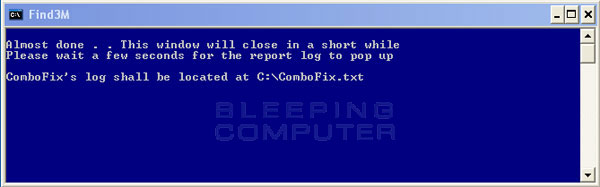
ComboFix is almost done!
When ComboFix has finished, it will automatically close the program and change your clock back to its original format. It will then display the log file automatically for you as shown below.
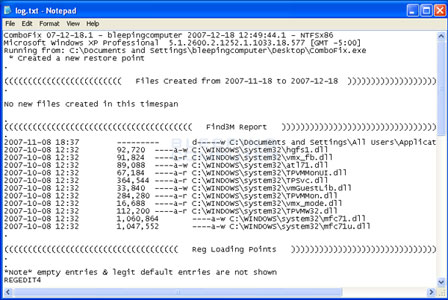
ComboFix Log File
You should now post this log as a reply to the topic where you were asked to run combofix. Your helper will now analyze this log and let you know what they would like you to do next. If you having problems connecting to the Internet after running Combofix, then please read the Manually restoring the Internet connection section.
It is possible that ComboFix, even on its first run, may have fixed the problems you are having. We strongly suggest that you still post your log into the topic that you are receiving help as you most likely will have infections left over that your helper will need to analyze further.
Please note that if you uninstall ComboFix it will also remove all backups and quarantines that were created when ComboFix scanned and cleaned your computer. Therefore, only uninstall ComboFix when you are a hundred percent sure that your computer is operating correctly and that you no longer need any of the files that were backed up or quarantined.
To uninstall ComboFix from Windows XP please perform the following steps:
Click on the Start button ( ) and then select Run from the menu. This will open up the Run dialog box as shown in the image below:
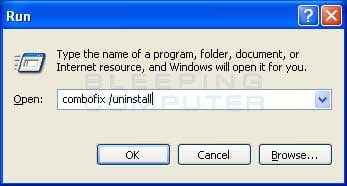
Windows XP Run Dialog
In the Open: field type combofix /uninstall, as shown in the image above. Please note that there is a space between combofix and /uninstall. Once you have typed this in, click on the OK button. A Open File security warning will appear asking if you are sure you want to run ComboFix. Please click on the Run button to start the program.
ComboFix will now uninstall itself from your computer and remove any backups and quarantined files. When it has finished you will be greeted by a dialog box stating that ComboFix has been uninstalled. You can now delete the ComboFix.exe program from your computer. ComboFix has now been uninstalled from your Windows XP computer.
To uninstall ComboFix from Windows Vista or Windows 7 please perform the following steps:
Click on the Start button ( ) and then in the Search fied enter combofix /uninstall, as shown in the image below with the blue arrow. Please note that there is a space between combofix and /uninstall.
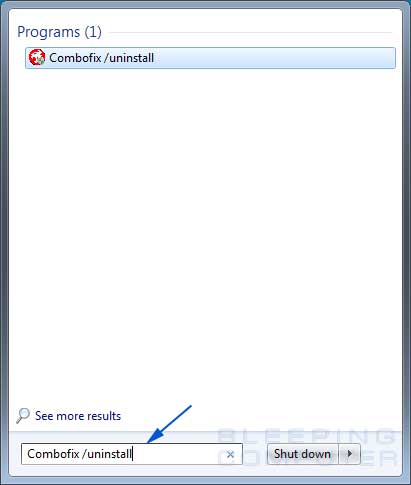
Windows 7 Start Menu
Once you have typed this in, press Enter on your keyboard. A Open File security warning will appear asking if you are sure you want to run ComboFix. Please click on the Run button to start the program.
ComboFix will now uninstall itself from your computer and remove any backups and quarantined files. When it has finished you will be greeted by a Dialog Box stating that ComboFix has been uninstalled. You can now delete the ComboFix.exe program from your computer. ComboFix has now been uninstalled from your Windows Vista or Windows 7 computer.
All information Gathered from https://www.bleepingcomputer.com/combofix/how-to-use-combofix